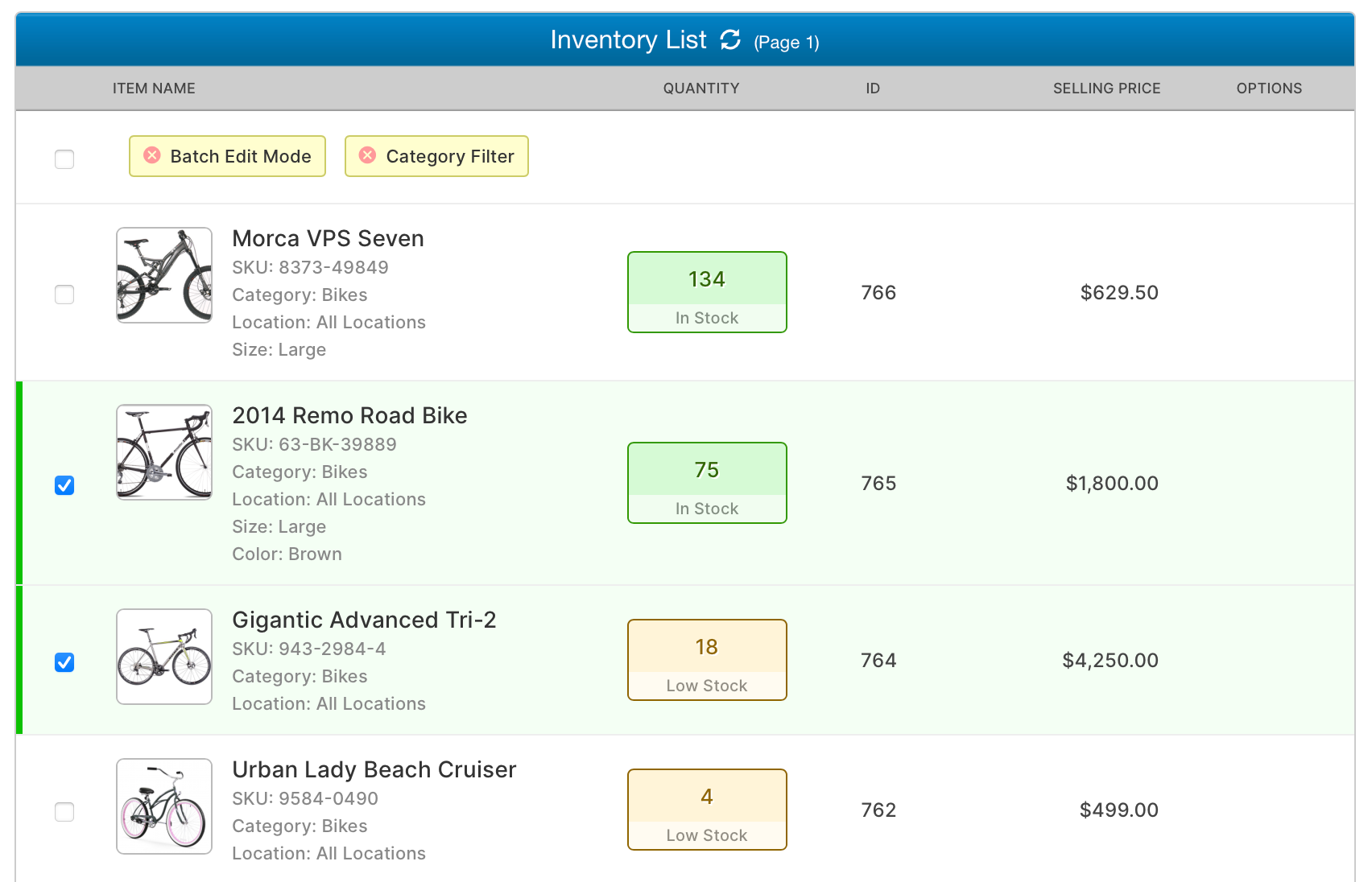
Using SalesBinder’s batch edit mode you can check off specific inventory items (or the entire page in 1 click) and then either delete or archive them.
Here’s how to use Batch Edit Mode:
- Go to your inventory list
- Optionally use the category filter to narrow down what you’ll be batch editing
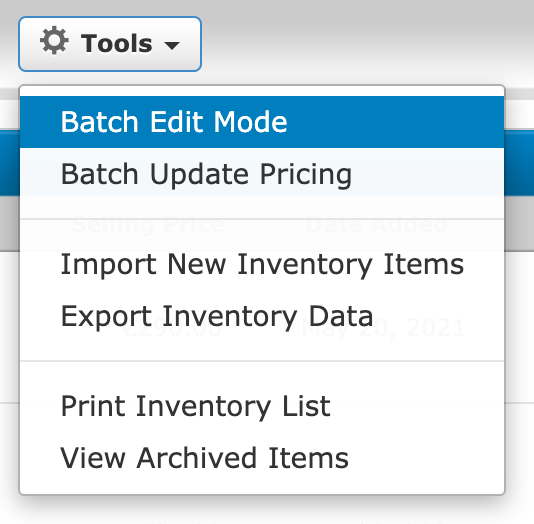
- Click on “Tools” then “Batch Edit Mode”
- You’ll see your same inventory list load with checkboxes beside each item
- Manually check specific items or simply click the topmost checkbox to auto select all items on the entire page
- After you’ve made your selection, simply click on “Delete Selected” or “Archive Selected” buttons in the top toolbar