
Using Custom Pricing Tiers in 3 Steps:
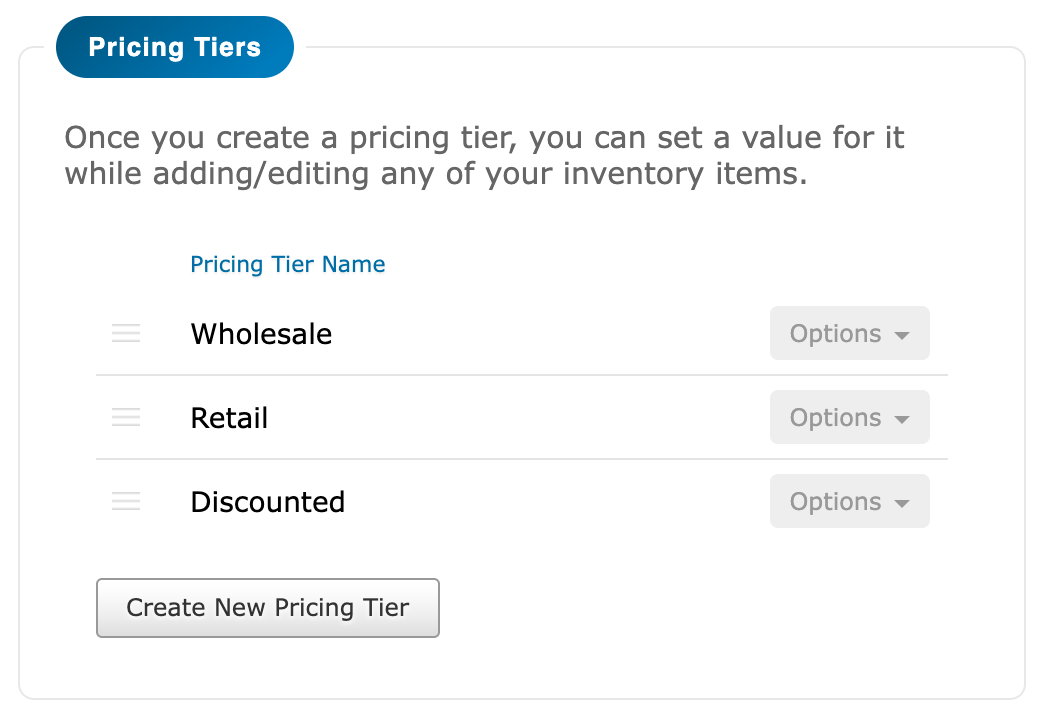
Step 1: Create your pricing tiers under Settings -> Pricing Tiers.
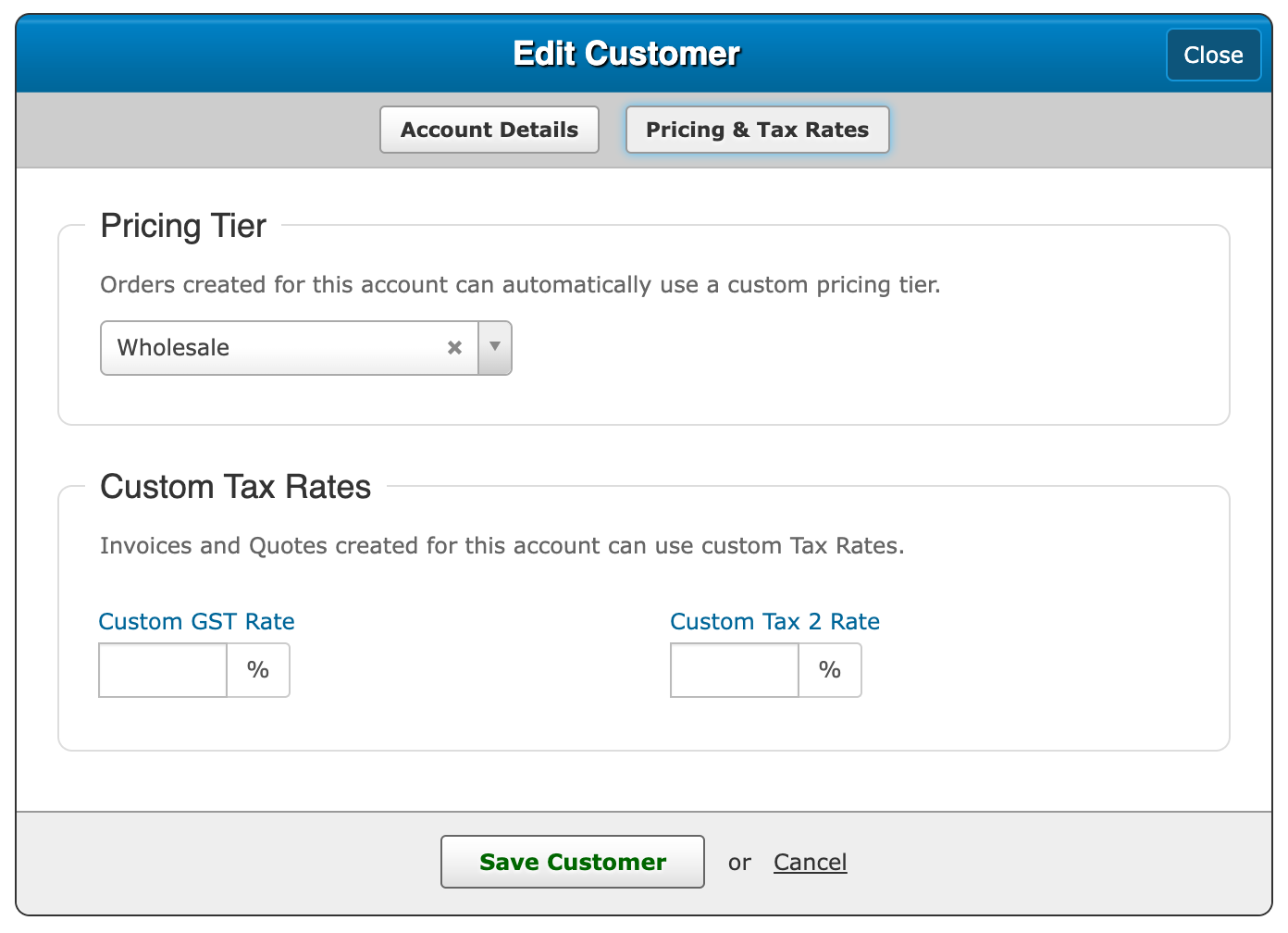
Step 2: Assign your pricing tiers and custom tax rates to any of your customers and prospects.
Step 3: Update the pricing of your inventory items.
That’s it!
Now that everything is setup in this example, anytime an invoice or estimate is created for this customer, it would automatically use the “Wholesale” pricing and custom tax rates (both of which can still be overwritten when creating/editing the order).
Tips:
- When adding items to an order, and that item doesn’t have custom pricing tiers saved, it will automatically use the default selling price.
- Setting custom tax rates for an account will always override your default tax rate set in Settings -> Billing Settings. You can even set the rate to 0% if they should be tax exempt.