
Set "Low Stock Reminder" values for your inventory
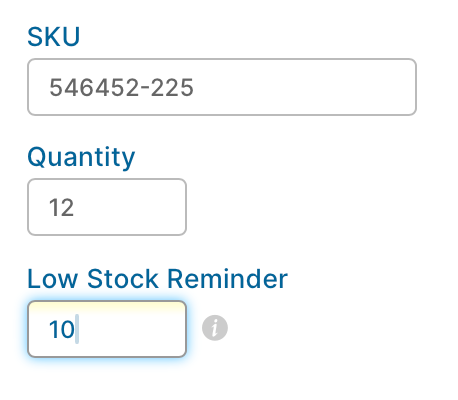
When adding/editing/importing inventory in SalesBinder, we have a field labeled "Low Stock Reminder" which enables you to set a value that represents when this specific inventory item should be considered low in stock.
As an example, if you set this value to 10, anytime this specific inventory item has it's quantity drop below 10 as a result of selling it, you'll receive an email notification outlining the recently sold low inventory items (as frequently as every 5 minutes).
Enable or disable receiving the low inventory email notifications
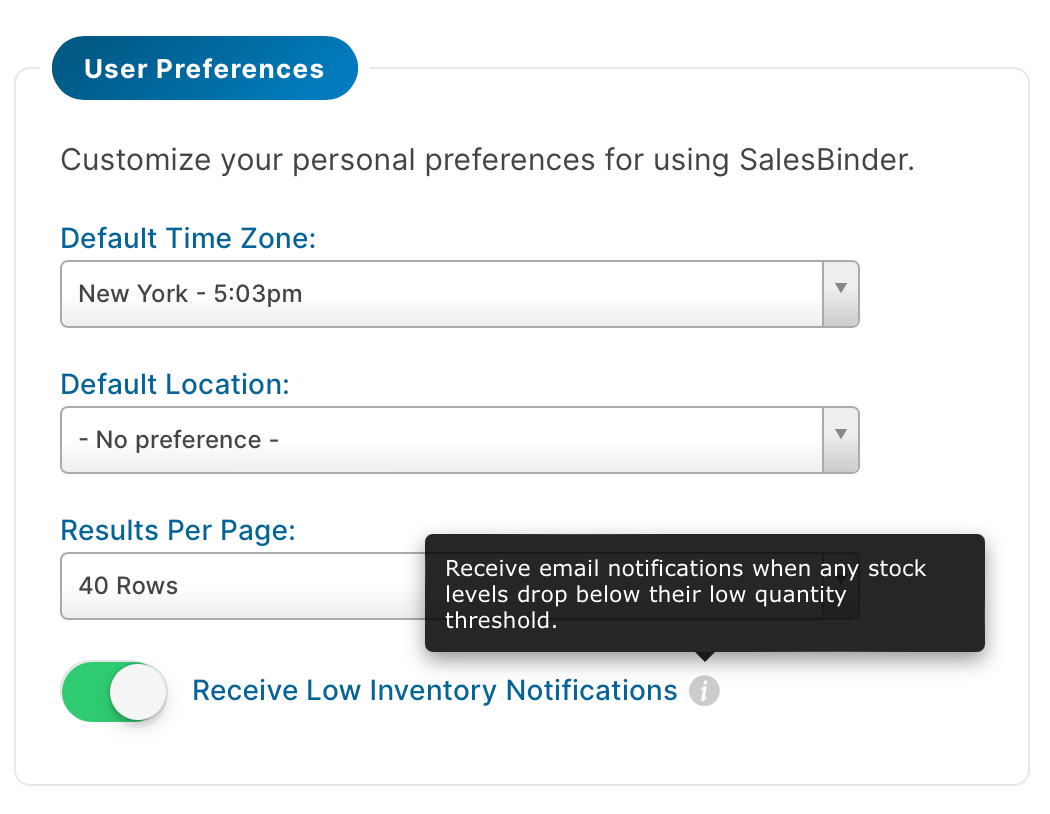
Each user has the option to receive these notifications or turn them off. The option is found under your "Profile" page found on the top right corner of every screen. If you look under the Preferences section, you'll see the on/off toggle there.
When you have this option enabled, anytime an inventory item is sold (by adding it to an invoice) and it drops below the low quantity reminder value, you'll receive the notification. If many line-items drop below the low threshold or you create a lot of invoices quickly (within 5 minutes), we'll group all the low inventory items into a single email for easier reading.
Low Inventory Report
If you don't want to receive these notifications, or you missed one of the emails, you can always review all your low stock inventory items in real-time by going to your Low Inventory Report. When viewing this report, if you apply a location and a supplier filter, you can also batch add all low inventory items into a single purchase order to quickly request more stock.